
This is one walkthrough. First you install MarineServiceTech from Apple. Then you teach the phone to hear Spanish and write English into the note before that note is saved on the work order.
1. Do not switch the iPhone to Spanish
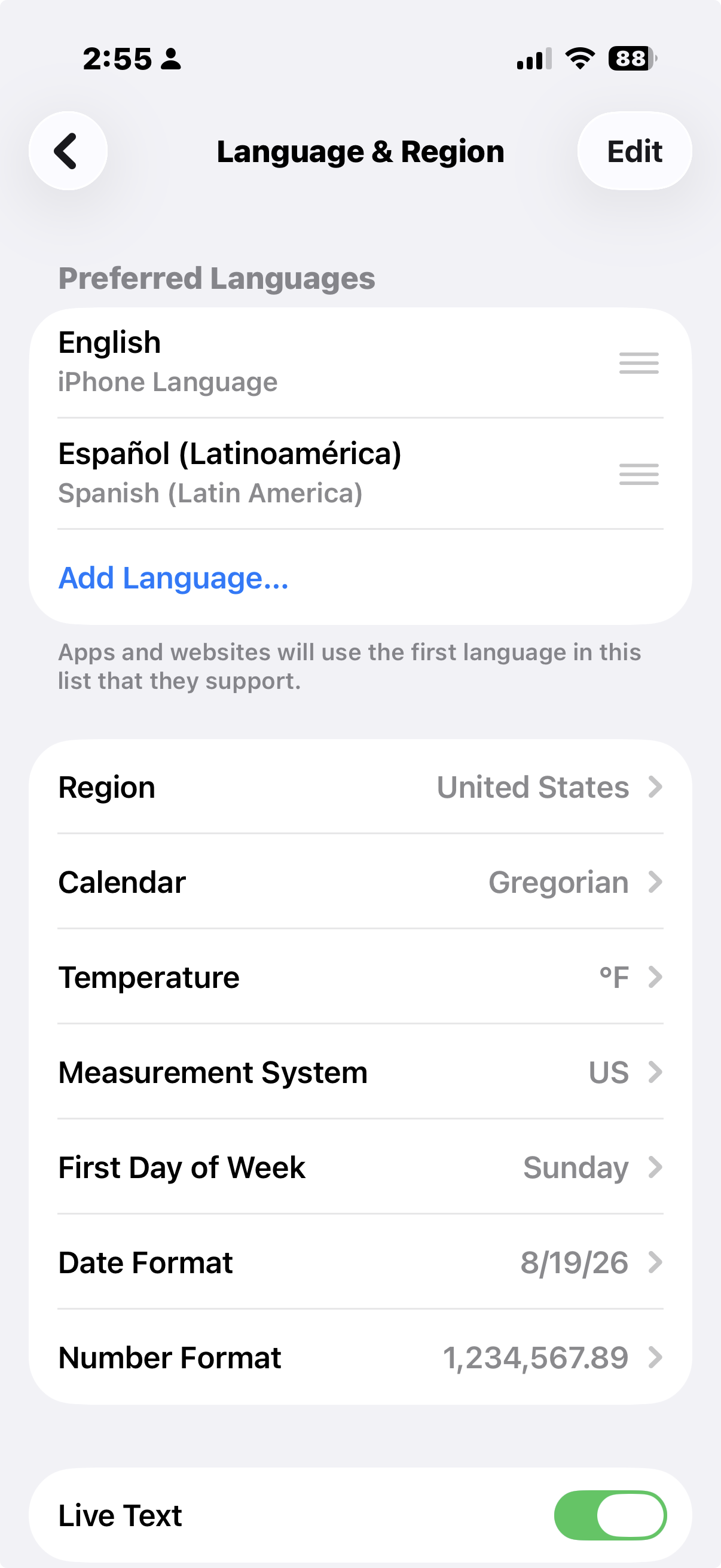
Open Settings → General → Language & Region. English should stay at the top, labeled iPhone Language. You may add Spanish underneath. Do not drag Spanish to the top. If Spanish is first, the whole phone — and the app’s buttons — switch to Spanish. That is “installing in Spanish.” It will not make spoken Spanish land as English on the ticket.
2. Install MarineServiceTech
Do this on the tech’s iPhone (or iPad). Use shop Wi-Fi if you can — the next steps download language files.
- Open the App Store (the blue “A” icon).
- Tap Search.
- Type MarineServiceTech as one word. Publisher: Intrepid Marine LLC.
- Tap Get, then Install. Use Face ID or the Apple ID password if asked.
- When it finishes, tap Open.
- If the phone asks to use the microphone, tap Allow.
- If it asks to use speech recognition, tap Allow.
Direct link: MarineServiceTech on the App Store.
Enroll this phone
The yard does not copy an API key onto the phone. After the tech replies Y to the registration text, Employees → enroll that phone. The tech opens it in MarineServiceTech. Full steps: Enroll a phone.
3. Add a Spanish keyboard
This is the step most people skip. Spanish must be on the keyboard list or the phone will not offer Spanish dictation.
- Open the iPhone Settings app (grey gears) — not MarineServiceTech yet.
- Tap General.
- Tap Keyboard.
- Tap Keyboards.
- Tap Add New Keyboard….
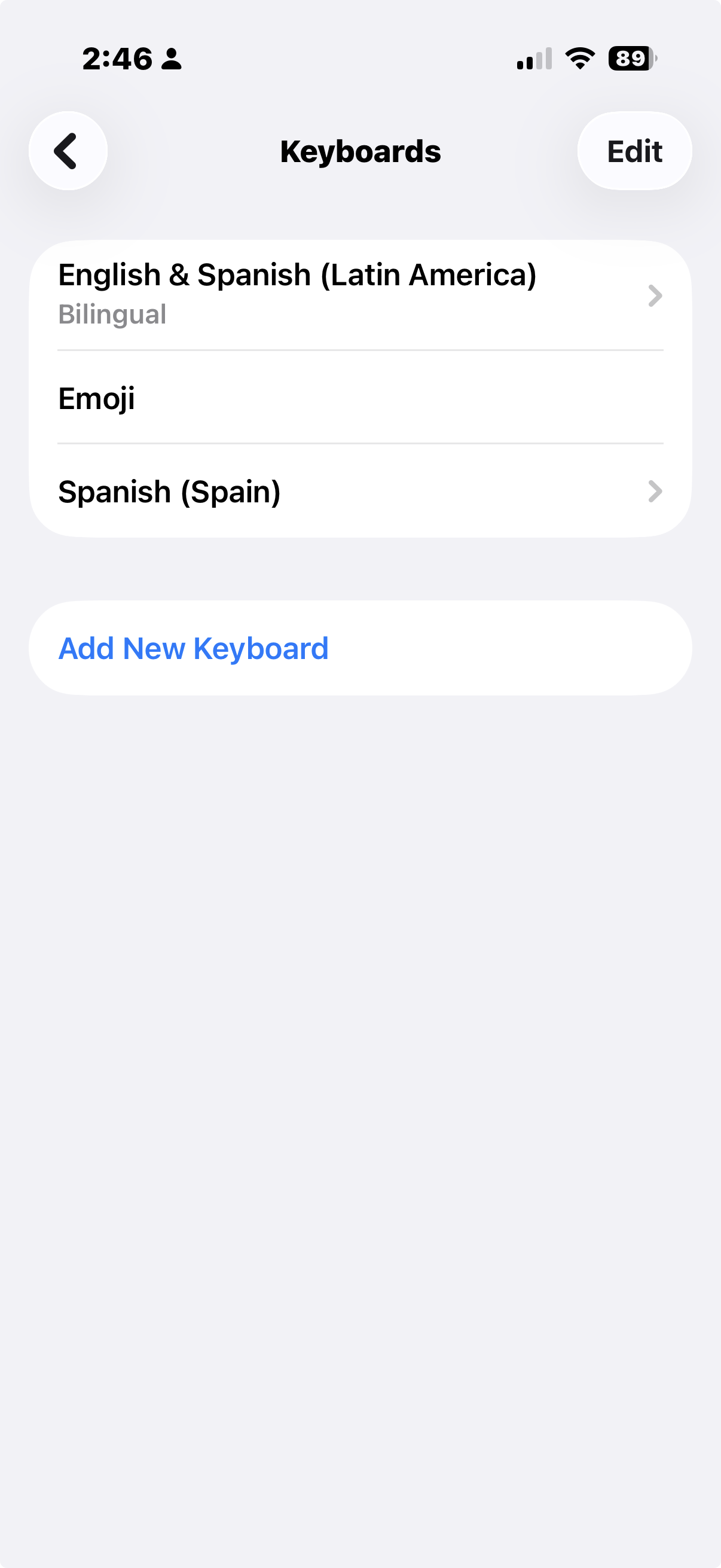
- Choose Spanish (Mexico) or Spanish (Latin America) for most U.S. yards. Choose Spanish (Spain) if that is how the crew speaks. You can add more than one.
- Leave English on the list. You are adding a keyboard, not replacing English.
Apple’s pictures of this screen: Add or change keyboards.
4. Turn on dictation and Spanish listening
- Go back one screen to Settings → General → Keyboard.
- Turn Enable Dictation on. Confirm if the phone asks.
- Open Dictation Languages (on some phones this is under Keyboard → Dictation).
- Turn on Spanish to match the keyboard you added. Wait until the download finishes on shop Wi-Fi.
If Spanish is not in that list, the keyboard from step 3 is missing. Add it, then come back. Changing Language & Region will not fill this list.
Apple’s guide: Dictate text.
5. Download Spanish and English for Translate
Dictation hears Spanish. Translate turns it into English so English is what is written into the note. That is a second download, still on shop Wi-Fi, so it works at the dock with a weak signal.
- Install Apple’s Translate app from the App Store if it is not already on the phone.
- Open Translate and download Spanish and English so they work on this phone.
- You can also start this download later from MarineServiceTech (next section).
Apple’s guide: Translate text in apps.
6. Turn on Spanish → English in MarineServiceTech
- Open MarineServiceTech.
- Tap More (bottom right).
- Tap Note dictation language.
- Set it to Spanish → English. Leave it on English only when the tech is speaking English.
- Pick Mexico, United States, or Spain to match how the crew speaks.
- If the screen offers a download for Spanish speech or Translate, tap it and wait on shop Wi-Fi.
This setting stays on this phone. You do not set it on every ticket.
7. Speak Spanish so English is saved
Use the microphone on the note inside MarineServiceTech — the round mic next to ES→EN. Do not use the microphone on the iPhone keyboard. The keyboard mic writes whatever it heard, in Spanish, unless you tap Translate afterward.
- Open a work order. Open a note (for example Log progress).
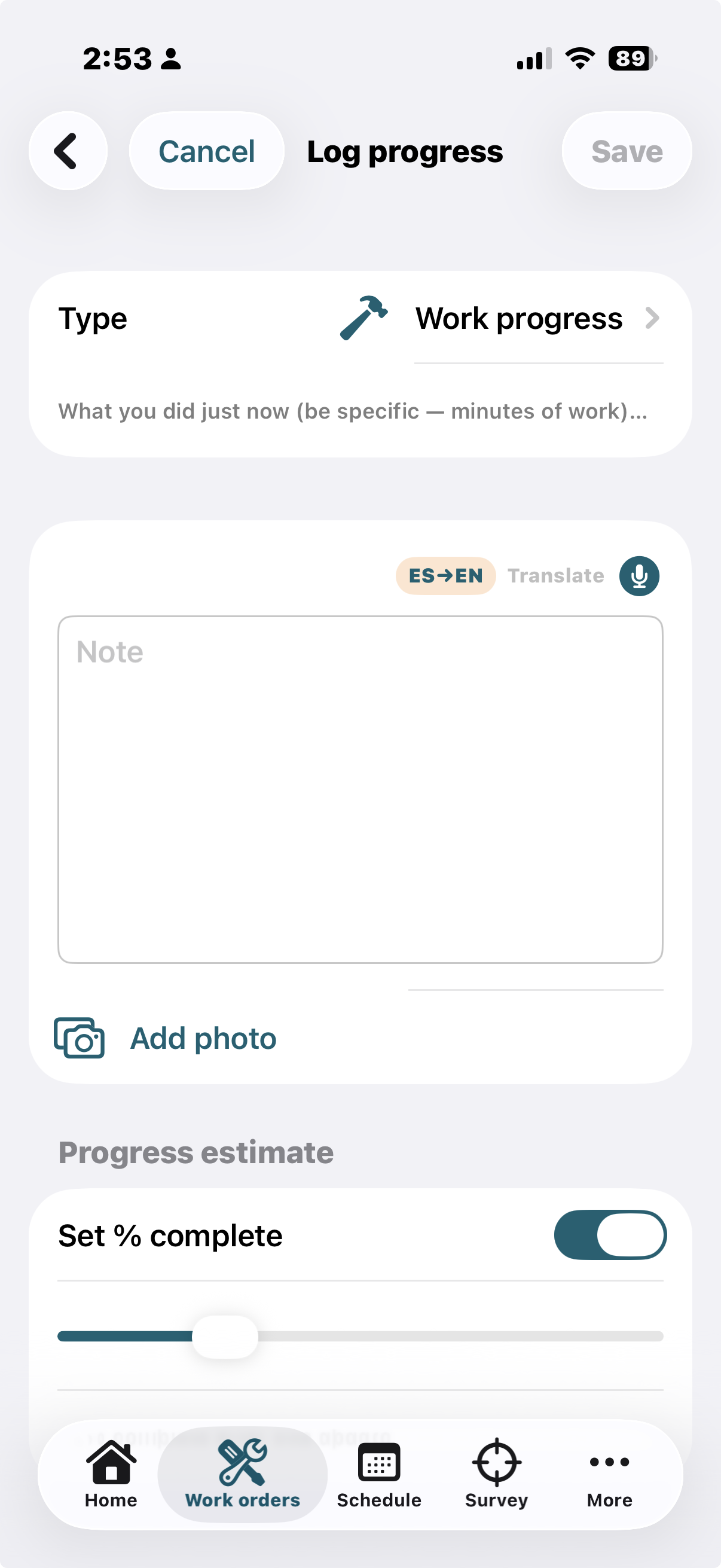
- Confirm the chip reads ES→EN.
- Tap the in-app microphone.
- Speak Spanish. Words on the screen may still look like Spanish while you talk. That is normal.
- Tap Stop. Wait a moment. English is what is written into the note.
- Tap Save. That English is what the yard office will see.
8. What it looks like when this is done
Phone language — Language & Region still has English as iPhone Language (the first screenshot).
Keyboards — English and Spanish are both listed (the second screenshot).
Dictation — Enable Dictation is on, and Spanish is turned on under Dictation Languages.
Translate — Spanish and English are downloaded on this phone.
In the app — a note shows ES→EN beside Translate and the mic (the third screenshot).
On the ticket — after you speak and stop, the saved note is English. The office reads English.
Connecting this phone to the yard office (pull tickets, transmit the return) is a separate step: enroll the phone.
More detail: Spanish dictation, English on the ticket.