
The yard office is the web hub at intrepidmarine.net/marineservicetech/login. Managers run customers, boats, tickets, and the week board in a browser. Techs on the dock carry MarineServiceTech. The office transmits the work order; the phone carries it. The office does not replace the iPhone app.
Sign in, or create a firm, from that login page. A sample yard is there so you can click around. Demo passwords are not published on this site.
1. Sign in
- Open the yard office login.
- Create a firm (confirm the email link) or use the sample yard on that page.
- Every real sign-in asks for a second factor. Prefer Google Authenticator (scan a QR once, then a rotating code) from the App Store or Google Play. You can also email a six-digit code. The sample yard is the exception so you can tour the hub.
- Forgot-password and staff invites use the same email + code pattern. There is no operator reset console.
Office 2FA is for the browser. Phones and iPads do not sign in with that email. Enroll them from Employees — see Enroll a phone.
2. Office logins vs Workers
| Office logins | Workers | |
|---|---|---|
| Who | Desk staff in the browser hub | Employees, contractors, and other techs who opted in |
| Where | Office → Office web hub logins (invite) | Workers panel — name, mobile, email |
| Phone | Optional | Mobile on the roster so tickets can be texted |
Each firm may roster 32 MarineServiceTech phones. Spelling on the panel is Workers.
The office host texts workers only — not customers from the server. Details: Who we text.
3. Customers and boats
- Add a customer (owner).
- Add one or more vessels. A customer with more than one boat has a default vessel.
- Open a ticket on that boat: kind, phase, status, problem, appointment, assigned workers, meet-at (dock / shipyard / other).
Photos and PDF documents can live on the ticket or in the customer archive (grouped by vessel). You can push a file from a ticket into the archive and pull it back later.
4. A day on a ticket
- Create the ticket from the customer/vessel, or from the board.
- Set appointment, workers (Assign tab — add, not replace), and where to meet.
- Log communications — every call, email, text, or walk-up belongs on the ticket (direction, how, one-line summary, notes). Newest first. Reminder emails also land here.
- Costs — parts, labor, expenses. Firm shorthand jobs live under Packages (code, title, kind, hours, rate). On the ticket choose a package → Add package.
- Send the ticket to the phone (next section).
- When the field return arrives, read notes and photos, finish billing, then Archive. You can download ticket photos as a zip.
About 24 hours before the appointment, the hub emails the customer (if they have email) and texts a cell that is marked for reminders. The message has when, where, and the worker’s name and number. There is no separate “send reminder” button.
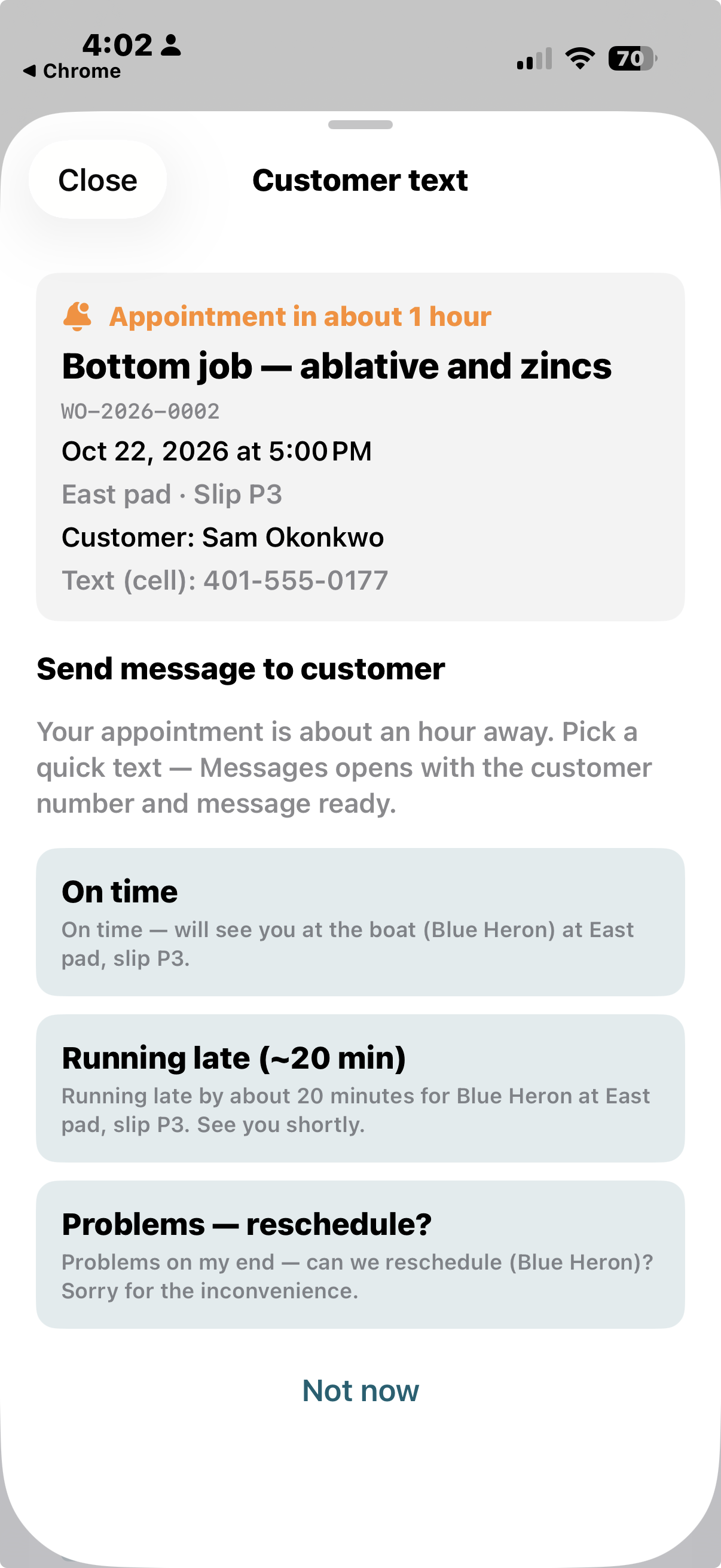
About one hour before, MarineServiceTech opens Customer text on the assigned iPhone. The worker picks On time, Running late (~20 min), or Problems — reschedule. Messages opens with the cell number and those words. The worker sends it. Not now dismisses that appointment.
5. Schedule board
Employees are listed A–Z on the left. The week or month board is on the right. Drag a person onto a work-order chip to put them on that ticket (add, not replace). Overnight hold versus send-now follows Office → Branding. Drag tickets between days; the time of day stays. iPad-friendly in the browser as well as in the app.
Two techs can share one work-order number — one on photos and notes, one on progress. Each registered phone gets its own pickup text. When both return, photos and progress append. Blank notes do not wipe the other tech. Marking the shared ticket Complete stays an office decision. Reports → Time by employee shows hours by name and phone. How to run that report (one ticket or the whole yard): Labor hours by employee.
6. Transmit a work order to a phone
Transmit the work order to a designated person on the roster. They receive it in MarineServiceTech and carry it while they work.
| How | What the tech does |
|---|---|
| Transmit from the ticket to the assigned worker | The work order opens in MarineServiceTech. Nothing is overwritten. |
| Enrolled phone — pull that work-order number | After the work order is on the phone: job Pull latest files from yard, or Transfer → Sync this work order and type the number. Firm profile name should match a person on the ticket. Phone-created jobs stay on the phone until they are transmitted back. |
Enroll the iPhone or iPad: after the worker replies Y, Employees → enroll that phone. Step-by-step: Enroll a phone. A contractor who works more than one yard enrolls with each firm. The phone keeps those records and uses them to receive and transmit that yard’s work orders. Assignment texts never carry enrollment. Office 2FA (Google Authenticator) is only for the browser.
7. Labor hours by employee
Clock time (check-in and tasks) is on the ticket Time tab and on Reports. It is not an invoice.
- Open the work order → Time for that ticket’s clocks (who, task, hours).
- Open Reports → read Time by employee for yard totals.
- Click Download ticket time CSV. Filter column WorkOrder for one ticket; group by Worker.
Desk clocks and I’m here → leaving from the phone both land there. Step-by-step: Labor hours by employee.
8. What comes back
The return is the same work order: problem, identification, testing, action taken, progress notes, photos, costs. If the tech dictated in Spanish with Spanish → English mode on, the office sees English in those fields — never untranslated Spanish on the ticket, PDF, or package.
Set that up on the iPhone before the first bilingual job: Spanish dictation, English on the ticket.
9. Purchase orders and inventory
When a System Admin has turned Inventory on, the desk orders parts under Inventory → Purchasing or from a ticket Costs tab. Catalog SKUs receive into SHOP / VAN as general on-hand, then Issue from stock onto a ticket. A PO linked to a work order is the path for a specific customer boat; a special-order line (no SKU) never hits the cage — bill it with Bill without stock.
Interactive charts (tappable steps): Purchase orders and inventory. Inventory is off on ServiceValet. Clock time on Reports is not an invoice and not a PO.
10. Firm look
Each firm keeps its own logo and two colors. Letterhead on PDFs comes from Firm. Public URLs stay on https://intrepidmarine.net/marineservicetech/… unless the yard reverse-proxies the hub on its own domain. Do not put a private server address on a ticket or in an SMS.
11. Your own website
Most yards sign in at intrepidmarine.net/marineservicetech/login. Put that URL on the firm’s own website as a button or menu item. Staff leave the marketing site and run MST here. Pasteable HTML and an optional Apache redirect: Link the office hub from the firm’s website.
Dedicated hosting on the firm’s own hostname is arranged with Intrepid Marine LLC.